Outdoor Pitstop
New in Outdoor Pitstop
You can now find a toilet or water fountain without opening the app first: with a widget, a shortcut, Siri or your Apple Watch. And on the go your route shows on the Lock Screen. It is all free.
What is new?
Widgets on your Home Screen
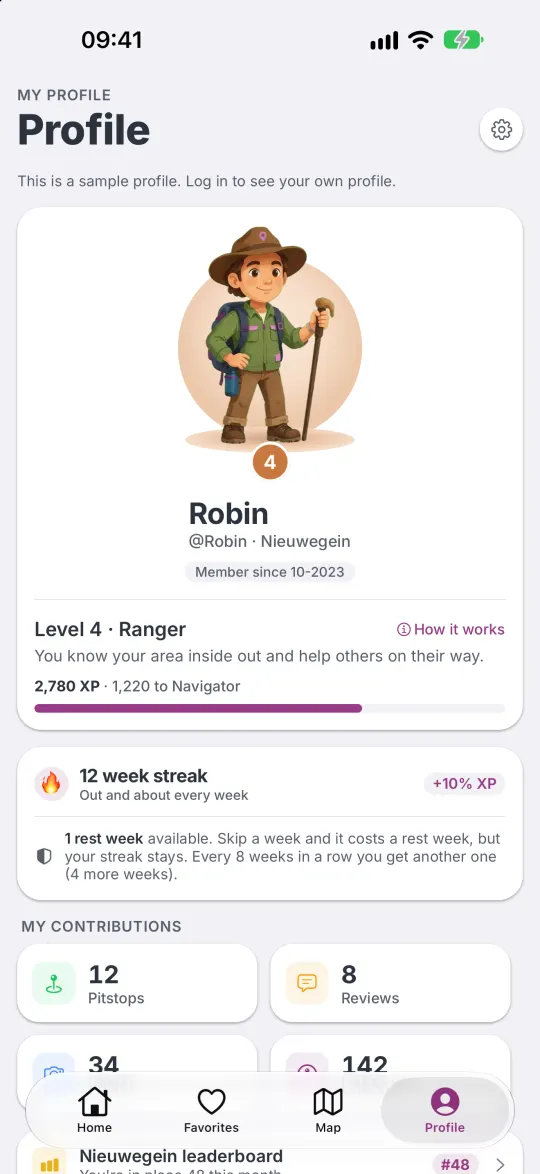
Three widgets, on iPhone and Android. Quick search (Snel zoeken): one tap and the app finds the nearest pitstop of a facility, such as a toilet or water. Progress (Mijn voortgang): your level, your XP and your streak. Continue (Verder met je route): pick up the route you followed last. For now the widgets have their Dutch names in the widget list.
Widgets on the Lock Screen
On iPhone you can also put quick search or your progress on the Lock Screen, below or next to the clock.
Shortcuts under the app icon
Touch and hold the app icon for four shortcuts: Toilet nearby, Water nearby, Record route and Add pitstop.
Your route on the Lock Screen
When you follow a route, record one or navigate to a pitstop, your trip shows on the Lock Screen and in the Dynamic Island of the iPhone. When navigating you see the next turn with an arrow and the distance, as in Apple Maps.
A notification that keeps up on Android
On Android your route, recording or navigation shows in a notification that updates itself. From Android 16 it also shows as a small chip in the status bar.
Siri, Shortcuts and the Action button
Say "Find a toilet with Pitstop" and Siri opens the nearest one. The same actions are in Spotlight and the Shortcuts app, under the Action button and as a control in Control Centre.
The Apple Watch app
On your wrist you see the pitstops nearby, and the Radar points the way and the distance to water or a toilet. A red night mode keeps your eyes at ease in the dark. Adding and recording from your watch come later.
New round icons
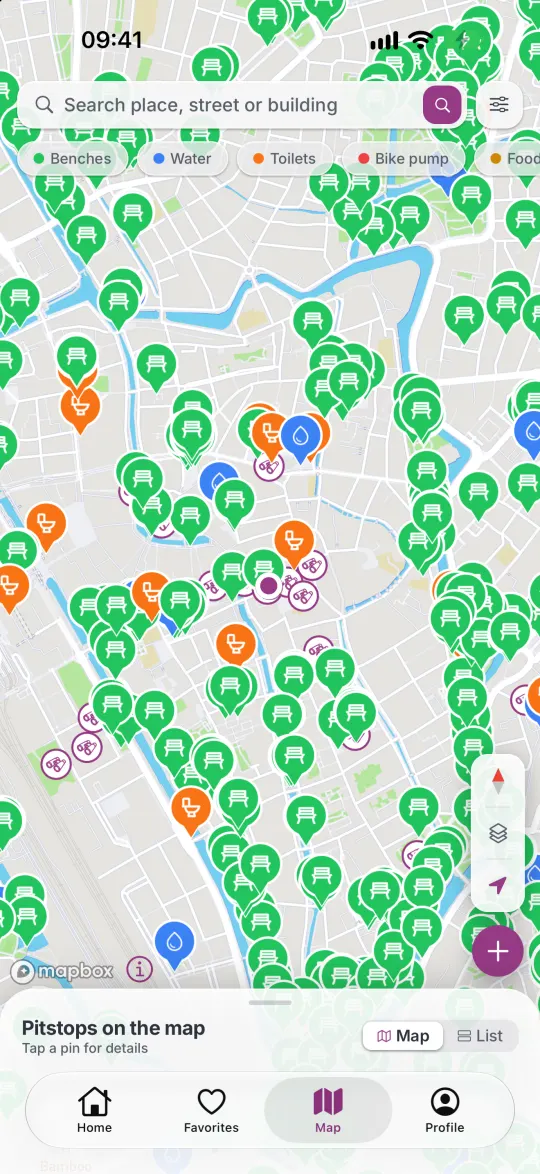
The facilities have new round icons with a colour gradient, in the app, the widgets and on the watch. On the map a circle replaces the pin.
How to add a widget on your iPhone
You put a Pitstop widget on your Home Screen in five steps.
- Touch and hold an empty spot on the Home Screen until the apps jiggle.
- Tap Edit at the top left, then Add Widget.
- Find Pitstop in the list and tap it.
- Choose Snel zoeken, Mijn voortgang or Verder met je route, and swipe to the size you want.
- Tap Add Widget, drag the widget into place and tap Done.
How to add a widget to your Lock Screen
iPhone only.
- Unlock your iPhone with Face ID or Touch ID, but stay on the Lock Screen.
- Touch and hold the Lock Screen, tap Customise, then Lock Screen.
- Tap the box below the clock.
- Choose Pitstop and tap Snel zoeken or Mijn voortgang.
- Tap Done.
How to add a widget on Android
The names in the menu differ a little per phone brand.
- Touch and hold an empty spot on the Home Screen.
- Tap Widgets.
- Find Outdoor Pitstop in the list.
- Touch and hold Snel zoeken, Mijn voortgang or Verder met je route and drag it to your Home Screen.
- To make it bigger or smaller, hold it and drag its edges.
How to use Siri
Finding a toilet with Siri needs no setup: Siri knows the Pitstop phrases by itself.
- Install the latest version of the app and open it once.
- Say "Hey Siri, find a toilet with Pitstop". Instead of a toilet you can say drinking water, a bench, a bike pump or a food stall.
- Siri opens the app and shows the nearest pitstop. Give the app access to your location the first time.
- Say "Record a route with Pitstop" to record a route, or "Add a pitstop with Pitstop" to add a new place.
The Action button and Control Centre
If your iPhone has an Action button, choose Shortcut in Settings › Action Button, then Pitstop. In Control Centre (swipe down from the top right) tap the plus, then Add a Control, and choose Pitstop.
New to Outdoor Pitstop?
How to find pitstops, add them and earn XP.
How it works